Projects
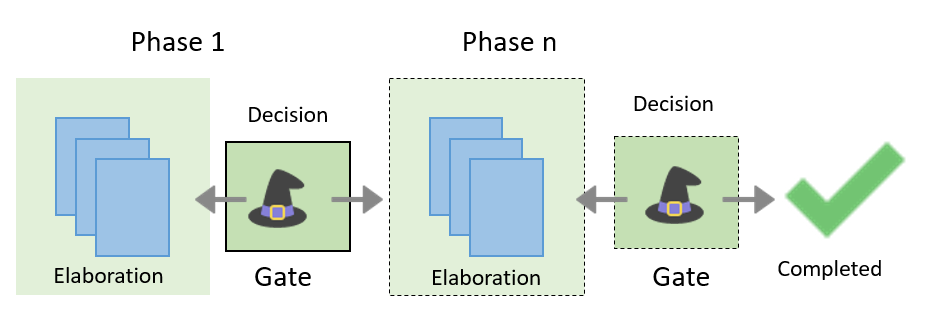
Typically, a project starts when an idea cannot directly be implemented. Projects run through a phase gate process with as many phases as needed to achieve the project goal. Each phase runs through elaboration and decision.
Project Summary
Displays the project name + process name and phase + status (elaboration or gate), project image, project dashboard, project description, the project team (lead and team members), and provided attachments for download.
Project Dashboard - Displays a selection of tasks as defined in the underlying process.
Project Description - sets the scope for the project. Rough specification for the team to work on. Defined by the portfolio manager (project creator).
Your actions as ... - Context related instructions about the next steps, displayed for all users who have an active role (project leader, team member, or gatekeeper).
 - Context related forward button in the lower right corner.
The visualization on top of the summary page indicates the current phase and the planned timeline of the project. For each project phase the project leader can enter the planned start and end dates. You can manually enter your planned dates, or you can let the system set the dates automatically, when the project phases are forwarded.
Start date - The start date of the first phase will be set automatically, when the process designer starts the project. The start dates of the following phases will only be set if you do not manually enter a date.
End date - The end date of a phase will be set automatically when the phase moves forward to the gate. However, dates that have been set manually will not be overwritten.
Phase timing can also be set by the portfolio manager when setting up a new project.
Confidentiality
The project leader can mark a project as confidential. Confidential projects are only visible to team members, gatekeepers, and the portfolio manager.
Activities and Tasks
Displays the actual activities to be completed in that phase (as defined by the process designer), where the project team can document their work (enter the requested details).
Goal of this Phase - Goal of this phase (as defined by the process designer).
Activities of this Phase - Tiles for each activity, with the number of tasks to be completed.
Activity
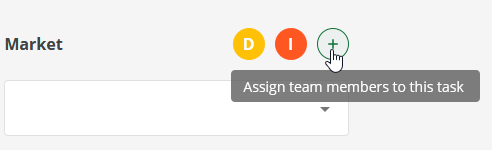
Displays the tasks to be completed for this activity. The navigation on the left displays all activities of current phase plus the number of tasks. The navigation on the right displays the tasks of the current activity. For each task, you can assign members of the team.
Project leaders can set activities of their projects to be Public, so all users can see the activity.
Completed Phases
Displays the previous phases and activities plus a project history. The history logs the phases and the gatekeepers' decisions.
Forward Buttons (Summary Page)
Forward to Gate - Only visible for the project leader. For phases in Elaboration. Moves forward to the selection of the gatekeepers. More than one gatekeeper can be selected to oversee a gate. In this case, any of the gatekeepers can make the decision and forward the project accordingly. After selecting the gatekeepers, you can continue and move the phase to the Gate. The task can no longer be edited. When the gatekeeper has made his decision, the project continues.
Make Decision - Only visible for the gatekeepers. For phases in Gate.
- Forward project to next phase (phase name) - the project moves to the next phase (elaboration). The project team is in charge again.
- Send to rework - the project moves back to the previous phase - from gate to elaboration.
- Postpone decision - the project is postponed.
- Terminate entire project - The project will be archived. You can no longer edit and work on an archived project. However, content is still visible for all users who had read access to the project before (such as portfolio manager, project leader, project team, and gatekeeper).
- Message to Team - The gatekeeper can explain his decision. Required, if you send the project to rework, or if you terminate the entire project.
Workflow
Draft
The portfolio manager / campaign/channel manager creates the project, describes the project, and assigns the project leaders and the team.
Phase 1 (Elaboration)
The portfolio manager has started the first phase. Now the project team (leaders and team members) is in charge. The team works on the tasks and provides the requested details. Finally, the project leader selects the gatekeepers and moves the phase to the gate.
Phase 1 (Gate)
In this stage the gatekeepers review the completed activities and make a decision. The activities / tasks can no longer be edited. The gatekeepers can either move the project to the next phase, send the phase back for further elaboration, or stop the entire project.
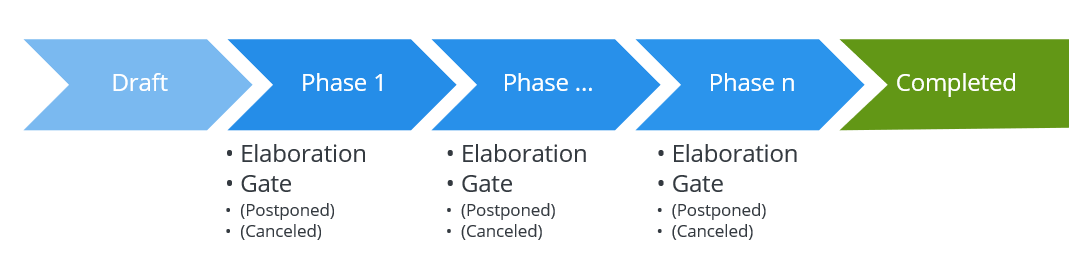
Phase n (Elaboration)
The project team is in charge. When approval is needed, the project leader moves the phase to the next gate.
Phase n (Gate)
The project activities / tasks can no longer be edited. The gatekeepers are in charge.
Postponed
The project has been postponed per decision of a gatekeeper. The project can be continued later per decision of the gatekeeper.
Terminated
The project has not been finished and has been stopped per decision of a gatekeeper.
Completed
The project passed the last gate and has been accepted there. Completed projects cannot be modified anymore.